Daily Pick
One deeply researched guide worth reading today.
A practical route through the systems that matter most, written to help new players make confident decisions quickly.
What Is CAPTCHA Hell?
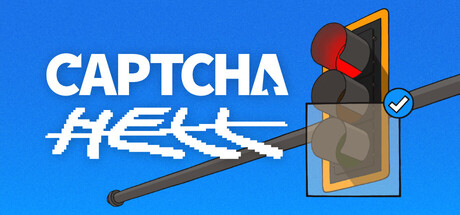
CAPTCHA Hell is a 2D pixel art adventure puzzle game from solo developer Linternet User (Lin), built in Unity. The setup: your favorite idol, Nova Hoshimiya, is retiring at the height of her fame, and her farewell concert is your last chance to see her perform. All you need to do is grab your ticket before it sells out. Thirty seconds, tops. Then the ticket site throws up a CAPTCHA. Then another. Then one that asks you to identify bicycles in a picture of the ocean. A routine purchase spirals into a surreal investigation through a simulated desktop, fake websites, and increasingly unhinged verification challenges, all orchestrated by the self-proclaimed greatest CAPTCHA company on earth: VeriHuman Technologies™.
The game runs as a point-and-click desktop simulator. Your screen becomes a fictional operating system with a file browser, a chat client, and a web browser, and the CAPTCHAs live inside that world. They are not stock puzzles. Every one is custom-built: a checkbox that pretends to analyze your cursor history, a full game of chess where the board is also the puzzle, a physics lever with actual weight, a trolley problem with a robot on the side track.
The origin story explains the tone. Lin could not land a web development job after college, so he hired himself, picked the funniest idea he could think of, and spent a year turning it into a game. The project started as a bare white screen with a gauntlet of CAPTCHAs, then pivoted hard: put the CAPTCHAs on a website, put the website in a browser, put the browser in an operating system. That one decision turned a puzzle gauntlet into a story-driven desktop sim, and the community that formed around the devlogs pushed the wishlist count past 50,000 before launch.
Who is this for: puzzle lovers, point-and-click veterans, anyone who has rage-quit a real CAPTCHA and wants revenge. Difficulty: medium but uneven, with the chess CAPTCHA and a few desktop-integration chains stopping most players cold. There is no death state and no fail screen; every challenge can be attempted infinitely. Length: 1-3 hours on a focused run, longer if you chase every secret.
| Fact | Detail |
|---|---|
| Developer / Publisher | Linternet User (solo, Unity) |
| Genre | Adventure, Indie (point-and-click puzzle, desktop sim) |
| Platforms | Windows, macOS, Linux |
| Price | Not announced yet |
| Release | Coming soon (no date announced; still unreleased as of September 2026) |
| Languages | English interface and subtitles |
| Features confirmed | Single-player, Steam Achievements, Steam Cloud, Save Anytime, Custom Volume Controls, Family Sharing |
| Min specs | 64-bit, Windows 10, 2.0 GHz dual-core, 2 GB RAM, integrated graphics, 2 GB storage |
Release status matters. The Steam page is live for wishlisting but the game has no release date yet. The community asked for one in June and got a joke answer. If you are reading this before launch, treat the walkthroughs below as a preview of the systems shown in teasers and devlogs, then verify against the shipped game. The story has five sections, each giving a unique spin to CAPTCHA gameplay, so expect puzzles this guide cannot cover yet.
Getting Started
There is no tutorial popup. The game drops you onto a desktop and expects you to poke at things. Here is what matters in the first thirty minutes.
The Desktop Map
The whole game lives in a simulated operating system. Learn this layout before you touch anything:
Top bar:      clock | Wi-Fi icon (fake) | system tray | notifications
Taskbar:      pinned apps: CloudStorage, Chat, Browser, File Explorer
Desktop:      wallpaper, loose icons, the homework folder shortcut
- CloudStorage: the app you came for. Clicking it triggers the first CAPTCHA. Every CAPTCHA wave starts here.
- Chat: the hint engine. A friend messages you early. Read everything, including old history. Messages arrive on triggers, and some triggers are simply "you have been stuck for two minutes."
- File Explorer: directories, documents, images, and the homework folder.
- Browser: an in-game web browser with a real, typeable URL bar. The VeriHuman Technologies™ corporate site lives here, along with fan forums and stranger pages.
- System tray: clock, sound control, notifications. The clock advances as you progress.
The taskbar and window chrome are real interactive elements, not decoration. The dev rebuilt both after they broke, and a Short documenting the fix tells you how much he cares about that layer feeling like an OS.
First 30 Minutes Checklist
- Open CloudStorage. Solve the first CAPTCHA. A second one appears immediately. This is the pattern: they come in waves.
- Open the Chat app before doing anything else. Read the full history, not just the newest message.
- Open File Explorer and browse every folder, including the homework folder. It is seeded with clues that pay off hours later.
- Open the Browser and click through the default bookmarks. Note that the URL bar accepts typed addresses.
- Do not close apps. The game remembers window state, and some CAPTCHAs check which windows you have open.
Beginner Mistakes to Avoid
Fighting the lever with clicks. The most common stuck point in the game. Clicking, dragging fast, and spamming all fail. The lever is a deliberately designed bi-stable mechanism: it lags behind your cursor like it has weight, and it only commits when you drag it all the way to the snap point. The dev reworked it twice, modeled the feel on a gacha game's pull lever, and even 3D-printed a physical one just to tune the resistance. If you have failed ten times, you are moving too fast and letting go too early.
Skipping the homework folder. Multiple puzzles are direct lookups into files that only exist there. The folder also grows after major milestones. A folder that was empty at minute five can hold the answer at minute fifty. The dev has also added "extremely redacted files" to the game, so expect documents that look useless until a late puzzle references them.
Ignoring the browser URL bar. Some puzzles require navigating to addresses that are not linked from any page. The chat app sometimes mentions a weird URL a friend's cousin shared. Type it in exactly.
Closing the Chat window. The chat app is the built-in hint system, and it was built on purpose: the dev has said the game would feel like psychological torture without friends interrupting with advice. Keep it open and visible. When a contact is typing, wait.
Treating CAPTCHAs like real CAPTCHAs. They are not testing your humanity. They are testing your familiarity with the game's own systems. A real CAPTCHA never asks you to open a file browser. This one does.
Core Mechanics Explained
The Desktop System
The entire game runs inside a simulated OS, and it is fully interactive:
- Cloud drive app: triggers every CAPTCHA wave.
- Chat app: contacts message you proactively, with typing indicators, timestamps, emoji reactions, and scrollable history. Most of the game's dialogue happens here.
- File browser: directories, documents, images, and the mysterious homework folder.
- Web browser: the VeriHuman Technologies™ corporate site, fan forums about Nova Hoshimiya, and stranger pages. The URL bar accepts input.
- System tray: clock, sound control, notifications.
Each app runs in its own window. You can drag, minimize, and close them. The desktop remembers everything, and Save Anytime plus Steam Cloud mean your messy desktop persists across sessions.
CAPTCHA Archetypes
The devlogs and teasers confirm a wide roster of puzzle families. Recognizing the family tells you where to look for the answer.
| Archetype | What It Looks Like | Where the Answer Lives |
|---|---|---|
| Image selection | "Select all squares with traffic lights" | Read the prompt literally; watch for reflections and trick imagery |
| Escalating squares | Same grid, but each round demands more clicks | Patience; the answer key never changes mid-round |
| File lookup | "Open receipt.png and enter the total" | File Explorer, often the homework folder |
| Chat context | "What did your friend recommend for dinner?" | Chat history, matched to the named friend |
| Logic puzzle | Riddles, sequences, patterns across past answers | Chat hints, browser pages |
| Physical interaction | The lever, the slider, drag-and-hold objects | Slow, steady input; these have real physics |
| Trolley problem | A lever, a track switch, a person, a delivery robot | Pull the lever. You are the human here. |
| Screw/nut & shape puzzles | Rotate a nut, fit shapes into a square hole | Experiment with drag direction and rotation |
| Reckless driving | A traffic mini-game inside a verification frame | Community helped design a variant, so expect rule twists |
| Desktop integration | Uses two or more apps at once | Cross-reference everything |
| Chess/strategy | A real chess game inside the CAPTCHA | The chess survival primer below |
The Hint Escalation System
The game does not leave you to drown. Every puzzle has a built-in hint ladder:
- First failure: nothing happens. Try again.
- Second or third failure: the Chat app pings. A friend makes a comment that nudges you toward the mechanic.
- More failures: the hints get less subtle. The chat app exists specifically so the game "is less like psychological torture and more like an actual video game."
- Sustained failure: the game may surface the answer through a new message, a browser page change, or a desktop event.
Being stuck is a mechanic, not a wall. If a puzzle feels impossible, open Chat and wait for the typing indicator.
The Chess CAPTCHA (Full Breakdown)
The centerpiece puzzle, and the best-documented one. The dev built chess from scratch for this: Staunton-style pieces, legal move indicators, castling, en passant, promotion with a picker UI, check enforcement, checkmate and stalemate detection. The board is literally the old traffic light CAPTCHA grid tinted into a chessboard, which is the joke that makes the puzzle work.
What you are actually doing: while a real chess game happens against Stockfish, you must use your chess pieces to touch every square that holds a traffic light in the original image. A magnifying-glass button shows you the unfiltered image, so there is no guessing about where the traffic lights are. Your piece only needs to pass over a square once; it does not have to end its move there.
How the opponent works: the dev integrated Stockfish over its standard command interface, then added a "lobotomy button" that dials its strength down. Even lobotomized Stockfish is still strong, but it stops hunting your king like it is the French Revolution. Expect legal, coherent threats, not instant annihilation.
The proven strategy:
- Do not try to win the chess game. Winning is not the objective. Touching traffic light squares is. Everything else is survival.
- Press the lobotomy button if the engine feels overwhelming. It exists exactly for this. Lower difficulty is not cheating; it is a UI control.
- Open with safe developing moves. Pawns toward the center, knights and bishops out, castle early. A solid position keeps the engine from shredding you while you plan piece paths.
- Chart a route before you move. Look at the original image, mark the traffic light squares, then plan a single piece route that crosses as many of them as possible. Every move should either touch a target square or defend your king.
- Trade pieces when you can. Simplification reduces the number of threats the engine can generate. Fewer pieces on the board means fewer ways to get mated while you sightsee.
- Answer checks immediately. The game enforces them. Blocking with a piece that is also headed toward a target square is the ideal move; otherwise move out of the line of fire and reset your plan.
- Getting checkmated restarts the puzzle. Unlike real chess, mating is not a solution here. If you see the mate screen, you restart. Slow down before that happens.
- If you do not know chess at all: the legal move indicators show every valid destination, illegal moves just snap back, and the hint system escalates with failures. Chess literacy is not required. It just makes the puzzle take ninety seconds instead of fifteen minutes.
The dev tested this puzzle by feeding screenshots to ChatGPT and following its instructions. It suggested clicking nothing and hitting verify, mistook a light pole for a traffic light, played a stream of illegal moves, and only reached seven of eight squares after being handed the exact square list. The task is built so a human's visual parsing beats a bot's board analysis. You have the advantage here. Use it.
The Lever and the Trolley Problem (Full Breakdown)
The lever is not a UI element. It is a simulated bi-stable mechanism with drag lag, resistance, and a snap point, and it exists to operate a trolley problem inside a CAPTCHA. A runaway trolley heads toward a person tied to the tracks. Pull the lever and you divert it onto the side track, where a delivery robot is stuck. The framing is the test: a human pulls the lever to save the human; a robot would save the robot. The game even taunts you with distractors, wondering aloud whether the robot is carrying medical supplies, or someone's lunch, or your lunch.
How to actually pull it:
- Hover over the handle.
- Press and hold the mouse button.
- Drag downward slowly. The lever will lag behind your cursor. That lag is the weight simulation working as designed.
- Keep holding until the lever reaches the end of its travel and snaps into place.
- If it springs back, you released before the snap point. Slower, longer drag. The LED lights on the redesigned lever show its state, so watch them.
The original rotating lever was so confusing that the dev rebuilt it as a cylinder handle that slides side to side with no rotation at all, added the LED state lights, and tuned the drag feel against a real gacha game's lever. Playtesters still fought it. If the lever feels wrong, the fix is patience, not force.
The Ghost in the Browser
A detail worth knowing early: not every CAPTCHA lives where CAPTCHAs should. The dev has deliberately hinted that while the browser is "obviously where all the CAPTCHAs are going to be... or is it?" Late-game puzzles can surface in the file browser, the chat app, or the desktop itself. When a puzzle window asks something that makes no sense on its face, look at what else is on screen.
The Cursor Language and Audio Design
The game communicates puzzle intent through two channels players usually ignore.
Cursor shapes are instructions. The custom pixel cursor changes with context: the standard pointer means click, the magnifying glass means zoom or inspect, the grabby hand means drag. When your cursor changes shape as you hover, the game is telling you what input the puzzle wants. A lever that shows the grabby hand wants a held drag, not clicks. A puzzle area that shows the magnifying glass wants close inspection before any input. Trust the affordance.
Audio is a hint layer. The store page lists stereo sound and custom volume controls, and the game uses audio cues for feedback. Keep sound on. A wrong action often plays a distinct sound before the visual fails, which makes failures information-rich: you learn what did not work without waiting for the animation to finish.
Progression Strategy
Phase 1: Entry (First Waves)
The early CAPTCHAs establish the pattern and the humor: checkbox, image selection, escalating squares. Priority: explore every app, read every file, open every folder. The homework folder contains material that becomes the key to a mid-game puzzle. If you skip it, you will be stuck backtracking.
Phase 2: Investigation (Mid-game)
CAPTCHAs start blending mechanics. A single challenge might require checking a chat message for a hint, finding a file in a specific directory, then applying that information inside the CAPTCHA window. This is when the chat app teaches you to keep it open while solving.
Key milestone: the first time a hint arrives mid-puzzle. Messages have timestamps and typing indicators. If a friend is typing, wait; the incoming message is often the exact clue you need.
Resource priority: read every website fully. The VeriHuman corporate site has multiple pages reachable through navigation links. Check the URL field; the chat app sometimes mentions an unlisted address. Type it in.
Phase 3: Descent (Late-game)
The puzzles stop pretending to be real CAPTCHAs. They are openly game challenges framed as verification. The fourth wall blurs. Desktop elements start behaving strangely: windows glitch, files rename themselves, the chat app receives messages from unknown senders. The redacted documents start mattering.
Key strategy: screenshot everything. The game has no built-in notepad, and late puzzles reference earlier content. The solution to one late-game CAPTCHA may sit in a message from the first five minutes of the game. Your OS screenshot tool is your external memory.
Resource Priority Order
1. Chat app          : hints, lore, URLs, triggers
2. Homework folder   : file lookups, grows after milestones
3. Browser           : VeriHuman site, unlisted URLs, changing content
4. Desktop state     : new icons, wallpaper changes, glitches
5. Screenshots       : your external memory for late puzzles
Step-by-Step Strategy Sequences
Sequence 1: Cracking the First CAPTCHA Wall
- Open the cloud drive app. A standard CAPTCHA appears: "Select all images with a traffic light."
- Scan the grid. One image has a traffic light. Another has a stoplight. A third has a traffic light reflected in a puddle. A fourth has a bicycle.
- The trick: select only images with an actual traffic light fixture. The reflection does not count. The stoplight does not count. Read the prompt like a lawyer.
- Solve it and a second CAPTCHA appears immediately. Waves, not singles. Expect it.
- After the second one, open the Chat app. Someone has something to say.
Sequence 2: Solving the Chat-Integrated Puzzle
- A CAPTCHA asks: "What did your friend recommend for dinner?"
- Open the chat app. Scroll the full history. One friend said "You should try the ramen place on 5th."
- A different friend said "Pizza. Always pizza."
- The correct answer depends on which friend the CAPTCHA names. Check the CAPTCHA title or header for a name.
- Enter that friend's recommendation. Watch for typing indicators before you submit; a friend might be about to send the exact hint you need.
Sequence 3: The Homework Folder Puzzle
- A CAPTCHA shows a file path:
C:\Users\You\Documents\Homework\math_quiz.png - Navigate the file browser: My Computer → Local Disk (C:) → Users → You → Documents → Homework.
- Open the image. It shows handwritten math problems with answers.
- The CAPTCHA asks a math question. The answer is one of the problems in the image. It is a lookup, not a calculation.
- This pattern repeats. The homework folder grows after major milestones, so re-check it whenever you feel stuck.
Sequence 4: Surviving the Chess CAPTCHA
- A chessboard appears inside the CAPTCHA. The instructions tell you to prove you are not a bot.
- Click the magnifying-glass button first. See exactly which squares hold traffic lights before you move a single piece.
- Open with safe developing moves: center pawns, knights out, castle early. This buys you tempo.
- Plan a route that crosses as many target squares as possible with one piece. Touch a square once and it counts.
- If the engine's attacks feel relentless, use the lobotomy control to lower its strength.
- Answer every check immediately. A blocked check that also touches a target square is the ideal move.
- Get checkmated and the puzzle restarts. When in doubt, make the safe king move over the greedy target square.
Sequence 5: Winning the Trolley Problem
- The scene appears: a trolley, a track fork, a person on the main line, a delivery robot on the side track. The lever sits in front of you.
- Ignore the distractions about robot cargo. The CAPTCHA is testing role recognition, not logistics.
- Grip the lever: hover, press, and hold.
- Drag slowly. The lever lags behind your cursor on purpose. Do not interpret the lag as a broken input and start clicking.
- Pull until it snaps. The LEDs confirm the committed state. Watch the outcome, then read what the game thinks about your choice.
Sequence 6: The Desktop Integration Chain
- A CAPTCHA asks you to enter the filename of the latest file in Downloads.
- The Downloads folder is empty. You need to download something first.
- Open the browser. Navigate to a site mentioned in chat. Find the download link.
- Download the file. It appears in the Downloads folder.
- Return to the CAPTCHA. The answer now exists.
- Lesson: CAPTCHAs can change their requirements based on desktop state. When a prompt references something missing, the game is telling you to go make it exist.
Sequence 7: The Unlisted URL Hunt
- A chat message mentions a strange address, something like a friend-of-a-friend's link or a "backup" page.
- Open the browser. Click into the URL bar.
- Type the address exactly as mentioned. Case and spelling matter.
- If the page errors, check chat again. Messages update, and new ones arrive on triggers.
- Some pages only exist after you have progressed. Revisit failed URLs later.
Sequence 8: The Glitched Desktop Puzzle
- Late in the game, desktop elements misbehave. A window glitches, a file renames itself, an icon changes.
- Do not ignore it. It is a puzzle trigger. Investigate every anomaly.
- Screenshot the anomaly before interacting. The glitched state may reference something you saw earlier.
- Click glitched elements. Open and close windows. Revisit apps you have not touched in a while.
- If nothing works, open Chat. The escalation system will eventually point you at the mechanic.
Advanced Tips
The homework folder is the most important location in the game. Every file in it matters to at least one puzzle, and it keeps growing. Check it after every major milestone.
Chat messages run on a trigger system. Being stuck for two minutes is itself a trigger. The typing indicator is a good sign: someone is about to hand you a rope.
Sound matters. The Steam page lists stereo sound and custom volume controls, and the game uses audio cues. Keep your sound on.
The cursor has personality. The custom pixel cursor is bigger than Unity's default on purpose, and it changes shape by context: magnifying glass means zoom, a grabby hand means drag, and each shape is an affordance telling you what input the puzzle wants.
Read prompts like a lawyer. The humor lives in the gap between the literal prompt and the absurd image. The rule of thumb: the literal object counts, the artistic representation does not.
Failure is free. There is no death state. Timed puzzles just reset their timer. Use failed attempts to probe: click things, drag things, see what reacts.
The taskbar and windows are puzzle inputs. Some challenges check which windows you have open. Keep chat visible, and if a puzzle seems unsolvable with the information you can access, ask yourself what a second open window would change.
Expect five story sections. The screenplay is written and each section gives a unique spin to CAPTCHA gameplay, in the spirit of There Is No Game. Systems you mastered in section one will get reinvented later; stay flexible.
Wishlist and update before release-day play. The page has no date yet, and the dev patches and communicates actively. Features listed today (achievements, cloud saves, save anytime) are commitments, not shipped behavior; verify at launch.
The Puzzle-Family Strategy Matrix
Every CAPTCHA in this game belongs to a family, and each family rewards a different habit. Sort every new puzzle into its family first, then apply the matching strategy:
| Family | First Instinct | The Trap | Time Budget |
|---|---|---|---|
| Image selection | Read the prompt word by word | Reflections, shadows, partial objects that look like the target | 20 seconds |
| Escalating squares | Assume the answer key is stable | Rushing the last round when the click count doubles | 30 seconds |
| Checkbox | Just click it and watch | Missing the fake "analysis" animation's tells | 10 seconds |
| File lookup | Open File Explorer before reading twice | Answering from memory instead of checking the file | 1 minute |
| Chat context | Search history for the named friend | Confusing two friends' similar answers | 1 minute |
| Physical lever/slider | Drag slowly and fully | Clicking or fast drags that release before the snap point | 2 minutes |
| Trolley problem | Pull the lever, full stop | Overthinking the robot's cargo | 30 seconds |
| Screw/nut | Try both rotation directions | Forcing the drag when the mechanism needs alignment | 2 minutes |
| Reckless driving | Slow is safe | Treating it like a racing game | 3 minutes |
| Desktop integration | Open a second window immediately | Solving one-app puzzles with one-app habits | 5 minutes |
| Chess | Open the image viewer first | Playing chess instead of doing the CAPTCHA | 10-15 minutes |
The time budget column is the meta-strategy: if you blow past a family's budget, stop and check whether the puzzle is secretly a different family. A "file lookup" that cannot find its file is usually a desktop-integration puzzle in disguise. A checkbox that will not validate is usually checking your window state. The families blend in the mid-game, and the blend is the difficulty.
Reading the Prompt Like a Lawyer
The humor of the game lives in literalism, and so does the solution path. Three rules cover almost every image-selection variant:
- The object counts, the representation does not. A real traffic light counts; a traffic light painted on a wall does not. A reflection of a bicycle in water is a reflection, not a bicycle.
- Partial objects count when the game shows enough to identify. If half a fire hydrant is visible and clearly a fire hydrant, select it. When unsure, ask whether a human moderator would call it ambiguous; the game's answer keys are usually generous on clear cases and strict on puns.
- The prompt's grammar is a hint. "Select all squares with traffic lights" is about the lights. If the game wanted poles, it would say poles. When a puzzle fails on what you were sure was a correct answer, the difference is almost always in one word of the prompt you skimmed.
The Chess Opening, Adapted
The chess CAPTCHA rewards a specific opening plan. You are not playing for an advantage; you are buying time to tour the board. This setup does that with minimal theory:
1. e4 (or d4)     — a center pawn, standard and safe
2. Nf3            — knight develops toward the center, eyes the board
3. Bc4            — bishop on its longest diagonal, crosses many squares
4. O-O            — castle early; the king tucks away behind a pawn wall
From there, the touring plan:
- Pick a knight for the first tour. Knights touch 2 squares per move at minimum and jump over blockers, so a knight sweeps scattered target squares faster than any sliding piece.
- Use bishops for diagonal clusters. If three traffic lights sit on one diagonal, one bishop move crosses all three. Scan the board for diagonals and ranks before every move.
- Rooks cover ranks at the end. Once the center clears, a rook on an open file crosses half the board in two moves.
- The queen is your emergency tool, not your tour piece. Losing the queen to a target-square greed loses the puzzle. The engine punishes loose queens instantly.
- Count before you commit. The magnifying-glass button shows the target squares. Count them. Each move, check how many remain. If your count is not decreasing, you are playing chess instead of solving the CAPTCHA.
When the engine starts generating real threats, switch modes entirely: answer every check, block with pieces headed toward targets, and trade aggressively. A simplified position is a safe position, and the puzzle has no time limit, so trade everything down to a quiet endgame where the remaining targets are trivial to touch.
Desktop Forensics: A Second-Nature Checklist
Late puzzles reward players who treat the desktop as a crime scene. Build these habits early and the mid-game chains stop being hard:
- Screenshot on every milestone. New app appearance, wallpaper change, a file renaming itself, a chat from an unknown number. The screenshot costs nothing; a missed clue costs twenty minutes.
- Re-scan the homework folder after every CAPTCHA wave. It grows on triggers, and the growth is silent. Sort by date if the game allows it; the newest file is usually the relevant one.
- Read old chat messages again after major story beats. Messages stay meaningful after the fact; a joke from minute 5 can be the key at minute 50.
- Type, do not click, when a URL is mentioned. The browser's address bar accepts input, and unlisted pages are part of the puzzle economy. Typo once? Retype it exactly.
- Watch the clock in the system tray. Time advances with progress, and time-stamped hints reference it. If a chat message says "it's getting late," the game may literally mean it.
- Try every app on every glitch. When the desktop misbehaves, open each app once. The glitch lives in one of them, and closing a window can itself be a trigger.
System Requirements
The game is light. Almost anything modern runs it.
| Spec | Minimum |
|---|---|
| OS | Windows 10 (64-bit) |
| Processor | 2.0 GHz dual-core CPU |
| Memory | 2 GB RAM |
| Graphics | Integrated |
| Storage | 2 GB available space |
The recommended requirements are just "a 64-bit processor and operating system," which tells you the ceiling is low. Mac and Linux builds are listed with the same lightweight profile. If you can run a browser with a few tabs, you can run this.
FAQ
Q: How long is the game? A: Expect 1-3 hours on a focused run. Five story sections, each with its own spin on the CAPTCHA formula.
Q: Is the game out? A: Not yet. The Steam page is live for wishlisting, and no release date has been announced. The store listing still says "Coming soon" as of late September 2026.
Q: How much will it cost? A: Unannounced. No price is set on the store page yet.
Q: Do I need to know chess? A: No. The chess CAPTCHA shows legal moves, rejects illegal ones with a snap-back, lets you lower the engine strength, and escalates hints when you fail repeatedly. Chess knowledge just makes it faster.
Q: Can I lose or get a game over? A: No death state. You can attempt every CAPTCHA infinitely. Getting checkmated in the chess CAPTCHA restarts that puzzle; failing a timed puzzle resets the timer.
Q: Does the game support achievements? A: Steam Achievements are listed on the store page, along with Steam Cloud, Save Anytime, Custom Volume Controls, and Family Sharing.
Q: What platforms is it on? A: Windows, macOS, and Linux. Built in Unity by a solo developer.
Q: Who is the idol? A: Nova Hoshimiya, per the gameplay teaser. She is retiring at the height of her fame, and the farewell concert is the reason you are fighting a CAPTCHA wall in the first place.
Q: What inspired the game? A: The absurdist CAPTCHA genre, including neal.fun's "not a robot" browser game, with There Is No Game as the stated inspiration for the story's tone. The dev has been open about all of it.
Q: Is there a community? A: Yes. The dev runs a Discord server, posts on X and Instagram, and reads everything on the Steam community hub. Several puzzles in the game were shaped by community feedback.
Q: Are there difficulty settings? A: Not announced. The built-in hint escalation acts as adjustable difficulty: fail more, get more help. The chess CAPTCHA adds a strength control for the engine.
Q: Is the game in English only? A: The store page lists English for interface and subtitles. No other languages announced.
Q: What should I do while waiting for release? A: Wishlist it, and if you want a warm-up, play the free browser CAPTCHA gauntlets the genre is built on. The reflex this game rewards most is reading the prompt literally and distrusting the obvious answer.
Q: Which puzzles will stop most players? A: The chess CAPTCHA is the documented skill check, and the lever is the most failed physical interaction. Desktop-integration chains are the quiet third: they do not need skill, only the habit of opening a second window, and players who never built that habit hit a wall.
Q: Is there any combat, timer, or fail state? A: No combat, and no fail state. Timed puzzles reset their own timer on failure. The game is pure puzzle-solving with a story wrapped around it.
Q: Does CAPTCHA Hell have replay value? A: Five story sections with unique spins on the formula, plus secrets: unlisted URLs, the growing homework folder, redacted files, and whatever the concept pivot added. A completionist pass takes meaningfully longer than the 1-3 hour main run.
Q: Will my progress carry across devices? A: Steam Cloud is listed on the store page, along with Save Anytime. Both are pre-release commitments; verify on launch day.
Q: How hard is the chess CAPTCHA really, if I have never played chess? A: Harder than any other puzzle in the game but survivable without chess knowledge. Legal-move indicators show every valid destination, illegal moves snap back, the engine strength can be lowered, and the hint system escalates with failures. Budget 15 minutes instead of 3 and read the opening plan above.
Q: What is the deal with the idol's name? A: The gameplay teaser names her Nova Hoshimiya; some trailer uploads call the concert "Nayuna's." The developer's own store copy avoids the name entirely and just says "your favorite idol." If you are writing about the game, "your favorite idol" is the safest framing.
Q: Is this game actually about real CAPTCHA data? A: No. Every puzzle is custom-built and self-contained. The developer joked on the record that Steam might think he was harvesting data with CAPTCHAs, and the store page carries a joke notice that the game is not recommended for robots. It is comedy, not telemetry.
Completion Checklist
- Solve every CAPTCHA wave in the main path
- Read every chat message, including old history
- Open every file in the homework folder after every milestone
- Visit every page of the VeriHuman Technologies™ website
- Find at least one unlisted URL from a chat hint
- Beat the chess CAPTCHA without lowering the engine strength (bragging rights)
- Pull the lever correctly on the first try (bragging rights only)
- Trigger the chat hint system at least once by being stuck
- Screenshot early content so late puzzles cannot ambush you
- Complete the final narrative verification chain